


Table of Contents
In the world of remote work, where distractions are almost unavoidable, your ability to organise daily tasks is what sets you apart as a professional.
I have been using Todoist for years to manage both my professional and personal life, and I find it incredibly intuitive. Before discovering Todoist, I experimented with several other task managers; however, while they handled work projects adequately, they felt cumbersome for organising daily personal life.
Since stumbling upon Todoist in 2021, I haven’t looked back. The more I use it, the more productive I become. Eventually, I moved every single task into the app, finding a strange satisfaction in ticking boxes and accumulating Karma points. In this post, I’m sharing 8 powerful Todoist strategies to help you organise your entire life, based on my years of personal experience.
1. Project Set Up
Todoist’s free tier allows you to create up to five projects. In my experience, this is incredibly generous for most users. I personally relied on the free tier for years before deciding to upgrade in December 2025 to accommodate a more complex workflow.
When setting up your projects, choose names that make them easy to identify at a glance. I also recommend grouping related sub-projects under a main “parent” project whenever possible. For example, “Health” and “Finance” work well as standalone projects where you can add tasks directly.
For larger areas of your life, such as “Work Tasks” or specific personal initiatives, you can create project groups. Within these groups, use sub-projects to keep individual workstreams organised. For the sake of simplicity and to keep your sidebar clean, I suggest sticking to one level of nested sub-projects.
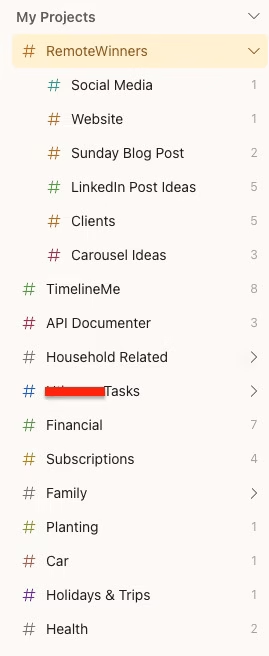
There is no right or wrong way; the idea is to keep your project list simple and easy to read.
2. Utilise Favourite Projects
To keep your most important work front and centre, you can right-click any project and mark it as a “Favourite.” These will then appear in a dedicated section at the top of your sidebar, above the main project list.
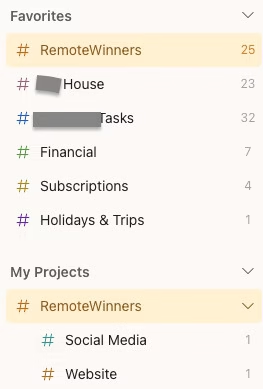
I highly recommend using this for projects you access daily. However, the key is to stay disciplined: keep your Favourites list manageable (ideally around five projects) so it doesn’t become as extensive as the main list.
3. Todoist First, Action Second
A core pillar of a successful workflow is knowing when to act and when to plan. If a task takes less than two minutes and needs to be done right away, do it immediately. For everything else, build the habit of adding the task to Todoist before you start working on it.
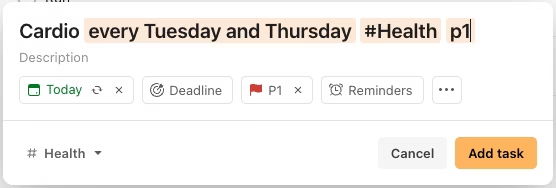
You can quickly capture tasks using your keyboard or voice. The most efficient way to do this is via Task Quick Add1. This powerful feature allows you to type out the task name along with the due date, project name (using the # symbol), and priority level (using ‘p’ followed by 1-4) all in one line. Whether it’s a one-off task or a recurring commitment, getting it into Todoist first ensures nothing falls through the cracks.
4. Review and Reprioritise Daily
Every morning, take a moment to look at your scheduled tasks and identify your highest-priority items. As you move through your day, tick them off as they are completed.
If you find that you cannot get to certain items, simply reschedule them for another day. It is perfectly normal and often necessary to reprioritise tasks by changing their dates or priority levels multiple times. Life rarely follows a perfect schedule, so there is no need to stress if you miss a deadline.
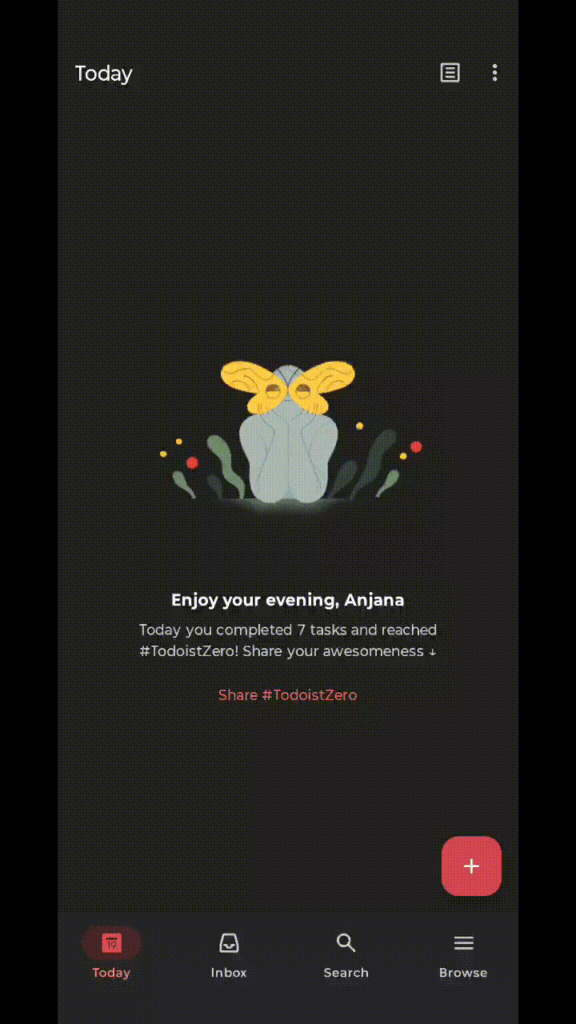
Productivity is rarely a straight line; some days you might knock out 15 tasks, while others you may barely finish five. What matters most is finding your own rhythm and maintaining the habit of showing up.
5. Master the Inbox for “Brain Dumps”
Think of the Inbox as a specialised holding area where all your new ideas and tasks land by default. This is the perfect space to offload thoughts from your mind straight into Todoist without a second thought.
The goal is to use the Inbox to capture tasks instantly so you can stay focused on the work at hand. Once you have a moment to breathe, you can go back and “process” the Inbox, assigning priorities, moving items to the appropriate projects, or even deleting them if they are no longer relevant. By using the Inbox as a temporary staging area, you ensure that your focused deep-work time isn’t interrupted by the fear of forgetting a new idea.
6. Leverage Comments and Attachments
To keep your task list clean, use the comments section to add extra context or progress updates without cluttering the original task name. This is particularly useful for remote workers who need to track details over several days.
You can also attach a wide variety of file types2 directly to a task as supporting material. Whether it’s a PDF brief, a screenshot, or a reference document, having your resources attached to the task itself saves you from digging through email or local folders when you’re ready to get to work.
7. Enable Two-Way Calendar Sync
One of the most powerful Todoist strategies for heavy schedule users is the calendar sync3. Once you connect your Google or Outlook Calendar, any task with a due date and time in Todoist will automatically appear on your calendar.
Because this is a two-way sync, changes made in your calendar will also reflect back in Todoist. If you are someone who lives by their calendar, this feature is a massive time-saver. It ensures that your tasks and your appointments exist in one unified view, preventing you from overcommitting your time.
8. Todoist On The Go
To truly master these Todoist strategies, you need the tool to be accessible wherever you are. Fortunately, Todoist offers powerful apps for mobile (iOS and Android), desktop (Windows and Mac), and web browsers that sync seamlessly in real-time.
This cross-platform reliability makes it incredibly simple to offload ideas the moment they strike. Whether you’re at your desk or out for a walk, you can add a task to your project straight away. By removing the friction between “thinking” and “recording,” Todoist ensures that your productivity stays high no matter where your remote work takes you.
(Bonus) Gamify Your Growth with Todoist Karma
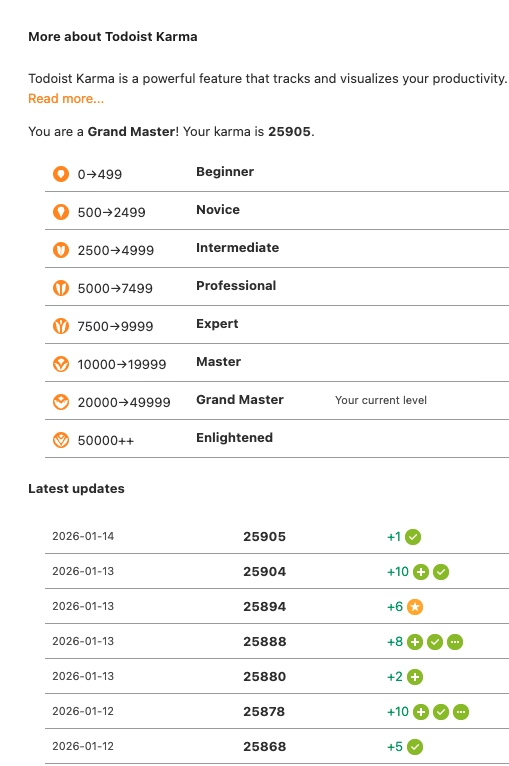
If you need an extra boost of motivation to add to your Todoist strategies, Karma is a brilliant way to visualise your productivity. This feature tracks your activity and awards you points for completing tasks, using advanced features, and reaching your streaks.
Within the Karma dashboard, you can see clear trends of your daily and weekly progress. It also allows you to set personal goals, such as completing five tasks per day or 30 tasks per week. Watching your “Karma level” rise from Beginner to Enlightened adds a fun, gamified layer to your workflow, making the discipline of organising your life feel much more rewarding.
What Others Are Saying
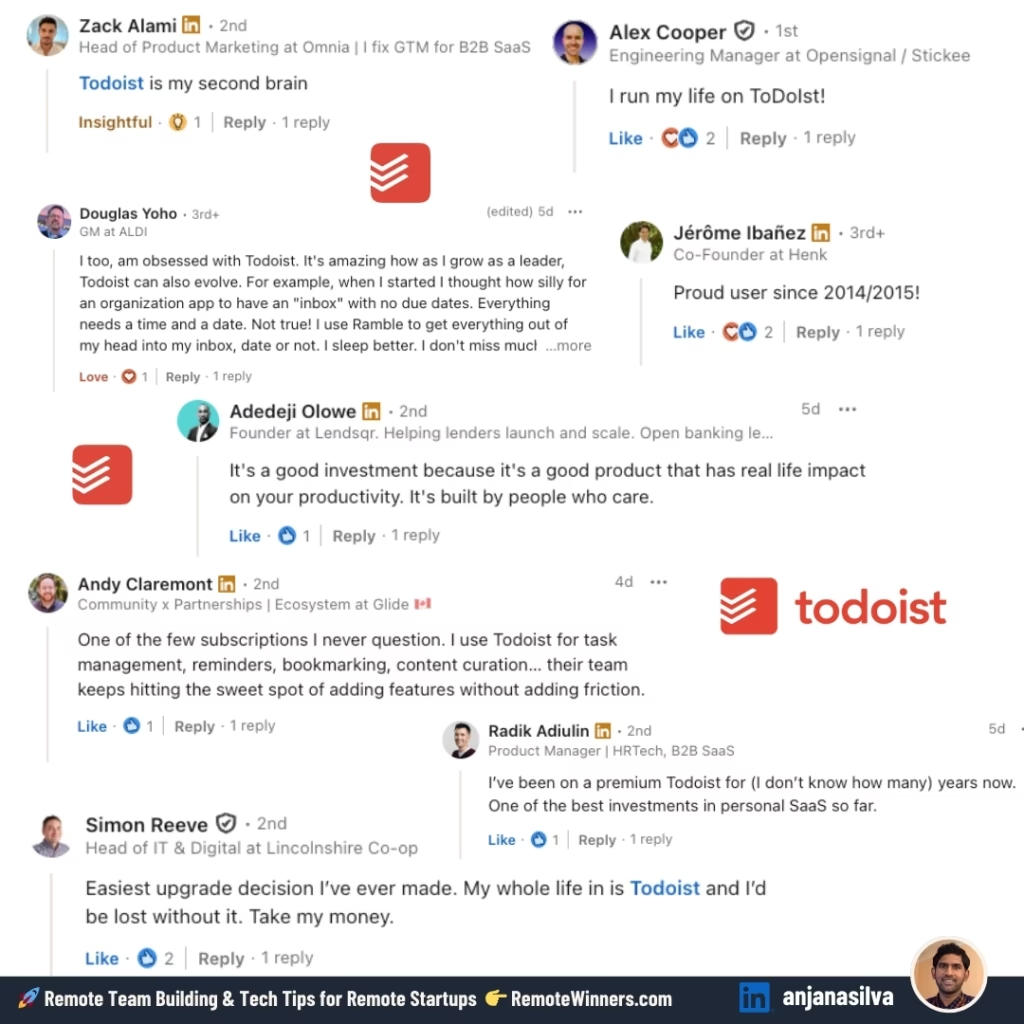
I recently shared some of these Todoist strategies on LinkedIn, and the feedback from the professional community was fantastic. It’s clear that whether you are a founder or a senior manager, finding a reliable way to organise tasks is a universal challenge.
Here are a few insights from fellow professionals that highlight the impact of a solid task management system:
- A Head of Product Marketing described Todoist as their “second brain.”
- An Engineering Manager noted that they run their entire life through the app.
- A Founder emphasised that the product is a “good investment” with “real-life impact” on productivity.
- A GM at a major retailer shared that the tool has evolved with them as a leader, specifically praising the “Inbox” feature for offloading thoughts to sleep better at night.
- A Head of IT & Digital called it the “easiest upgrade decision” they’ve made, stating they would be lost without it.
- A Community & Partnerships lead highlighted the “sweet spot” the tool hits by adding powerful features without adding friction.
Seeing how these leaders adapt the tool is a great reminder that while the system matters, the habit is what truly makes you a “Remote Winner.”
In a Nutshell
Throughout this article, we have discussed how you can leverage Todoist to stay on top of the productivity equation, especially when you are working on your own and have to be the master of your own discipline. Remember, you are the chief architect of your remote working arrangement.
There is no “right” or “wrong” way to manage tasks. However, having a clearly defined strategy, like the Todoist strategies we discussed above, will help launch your career to the next level. Also, don’t forget to share your experiences with your colleagues and your manager; they will be just as thrilled to hear about your productivity hacks as I am! 🙂
🎯 Need Expert Help?
If you’re facing challenges with remote work, I offer 1:1 coaching and tailored support to help you succeed at remote setup. Whether you’re just starting out, growing as a remote contributor, leading a team, or launching a remote-first start-up, Remote Winners offers targeted 1:1 coaching to help you thrive in a distributed world. We also provide tech consultancy services—from idea-to-product guidance to cloud deployment and cybersecurity reviews—to help organisations strengthen their technology and processes.
If you are unsure where to begin, drop us a message and we’ll be in touch.



Pingback: Simplified Issue Boards: A Guide for Remote Development Teams - Remote Winners